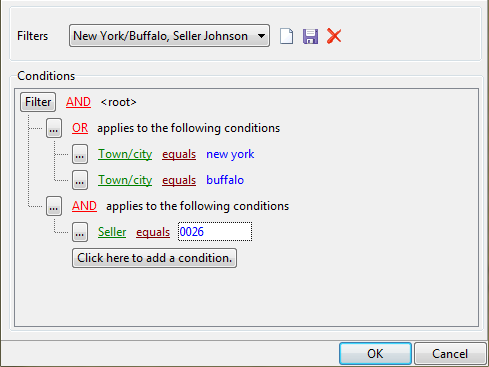
.
.- To create a new filter, choose [Empty].
- To use an existing filter, select it.
Choose 'AND' if the data must meet all conditions. Choose 'OR' if the data should meet at least one condition, for example if you are looking for customers from New York or Chicago: 'Town/city equals New York' OR 'Town/city equals Chicago'.
To use a combination of mandatory and optional conditions, click Filter and select Add group. For example, to search for customers in New York or Chicago who have a salesperson called Johnson, type the following: 'Town/city equals New York' OR 'Town/city equals Chicago' AND 'Salesperson equals 0026' (where '0026' is the employee number of salesperson Johnson).
 and select Delete row.
 and provide a name for the definition.