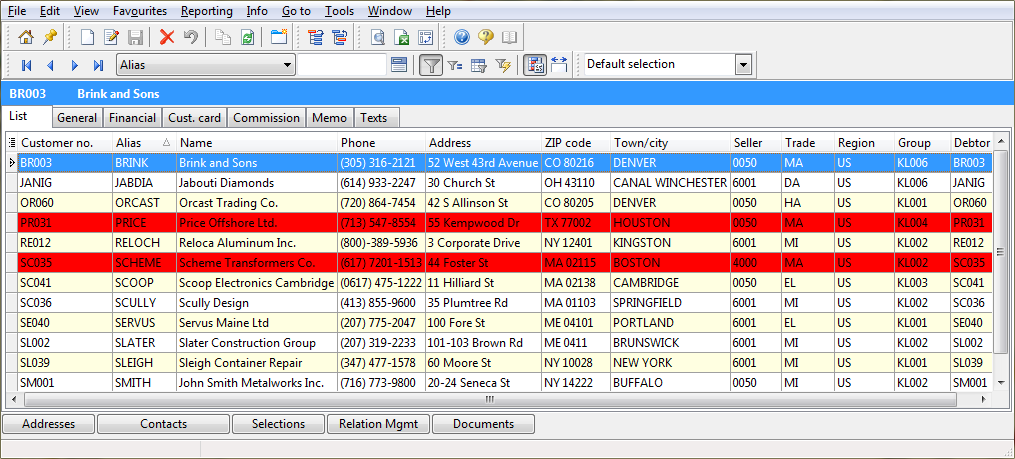
To mark lines that meet certain conditions, use the Conditional formatting feature. Using this feature, you could, for example, highlight all customers from New York in red. Conditional formatting is featured in the List and column functions demo.
Open the form in which you want to mark lines.
Click .
Make your choice in the Conditional formatting definitions field:
To create a new formatting definition, choose [Empty].
To use an existing format, select it.
Click Filter and select Add condition.
Then choose the field to which you want the condition to apply, and specify the condition, for example 'Town/city equals New York'.
To add another condition, click Click here to add a condition.
Choose 'AND' if the data must meet all conditions. Choose 'OR' if the data should meet at least one condition, for example if you are looking for customers from New York or Chicago: 'Town/city equals New York' OR 'Town/city equals Chicago'.
To use a combination of mandatory and optional conditions, click Filter and select Add group. For example, to search for customers in New York or Chicago who have a salesperson called Johnson, type the following: 'Town/city equals New York' OR 'Town/city equals Chicago' AND 'Salesperson equals 0026' (where '0026' is the employee number of salesperson Johnson).
In the Format section, specify how the matching lines are to be marked.
To delete a line, click and select Delete row.
To save the definition, click and provide a name for the definition.
Saving conditional formatting as a filter
You can save conditional formatting as a filter. When you do, the lines that meet the specified conditions will not be marked, but will be the only lines displayed on the form. Any lines that do not meet the conditions will be hidden.
In the Conditional formatting definitions field, select the conditional formatting you want to save as a filter.
 .
. and select Delete row.
 and provide a name for the definition.
 and type the data.