 Budget
Units
In this field, enter the units available for the project line. The Unit field shows the type of unit. In general, you will use hours, but also other units are permitted.
In this field, enter the number of units expected to be required for the project line. The Unit field shows the type of unit.
This is the permitted usage expressed in units. The Unit field shows the type of unit. Compare the permitted usage for the project line with the actual quantity to check whether you are still within budget.
This shows the number of expected units. The Unit field shows the type of unit.
This field is filled only if an order is linked to this project line, and if the value of the Unit field matches the unit set in the linked order. If these conditions are true, the actual number of units is displayed here. The number of actual units shown depends on the type of order linked to the line and the unit chosen.
The Department field is an informational field. Assigning a department to a project line does not result in a load on the department. A load on the department is the result of a load on one or more capacity groups of the department.
Use this field during the rough planning phase to create a load in hours for a capacity group. The number of hours is recorded in the Preliminary costing field of the Units section, and is distributed over the lead time of the project line on the Capacity/load form.
If preliminary hours are known for linked production files or operations, the load will be corrected accordingly.
Example
A project activity 'Production' is estimated to take 40 hours and to have a lead time of 10 days. The load from the project will therefore be 4 hours per day. When an operation with an estimated time of 30 hours is linked to this project activity, the remaining project load will be 10 hours (40 - 30 hours). If the preliminary time remains the same as or becomes greater than the project capacity, there will no project load.
This is the unit on which the estimated values in the Budget, Preliminary costing, Permitted, Expected and Rate fields are based. You can choose one of the proposed units, or you can enter a unit of your own choice.
When values are calculated based on underlying project lines and linked order information, they are calculated by adding up the units of the underlying or linked lines that have the same unit.
The fields in the Estimate column are informational only if the same unit has been used for all fields. For the fields in the Project lines column, the same unit must be used on the project line and on the underlying lines. Only when their units are the same, values such as 'Permitted' and 'Actual costing' can be compared with each other.
The rate is used to make rough calculations when a project is entered. The rate is retrieved from the plan group, where applicable, or can be entered manually. The following calculations are made during entry and modification when the unit and rate are not 0:
Rate * Unit is entered in the Costs and revenues section. If in the Units section, the Permitted field in the Estimated column has been filled in, the Permitted field in the Estimate column in the Costs and revenues section is automatically filled in based on that calculation. If, in the Units section, the Expected field in the Estimate column has been filled in, the Expected field in the Estimate section in the Costs and revenues section is filled in automatically.
This field contains the date on which the Calculate units, costs and revenues process was run.
Costs and revenues
This field shows what a project (or project component) should cost.
This field shows what a project (or project component) is expected to cost.
The link type of the project line determines which values are added up. All lines contributing to the preliminary costs of the project line are specified on the form. In the case of a link to production files, for example, all relevant calculation lines are displayed and added up. In the case of a link to sales orders, all sales orders, sales lines, and underlying calculation lines are displayed and added up.
If a purchase order is linked to the project line or to a parent project line, the commitments from the order are copied. It concerns the total of the purchase lines of which the receipts and purchase invoices have not been processed completely yet. To check whether the planned expenses match the expected revenues, you can compare the commitments with the period revenue to invoice. These commitments could be purchase lines directly linked to the project line, or purchase lines belonging to an order linked to the project line.
The value of the Commitments field matches the value of the Project total field in the Commitments column for the relevant project line on the Project cost analysis form. The value is the sum of the commitments specified on the purchase lines (or purchase orders) linked to the project line. All purchase lines contributing to the costs of the project line are specified and added up on the form.
This shows the permitted costs. Compare them with the actual costs to check whether the project line is within budget.
This shows the costs still expected.
If an order is linked to this project line, the forecast costs for the project line are displayed. The forecast gives you an idea of the ultimate costs. The forecast is adjusted on the basis of the costs posted. The forecast is calculated using the preliminary costs and the actual costs of all calculation lines linked to the project line. The following sums are added up:
Displays the total of all actual sums of linked or related orders. The Project lines column shows the total of the sums from the orders linked to underlying project lines.
The Order information column shows the total of the actual sums from the order that is linked to the project line. The value of the field matches the value of the Project total field in the AC Total costs column on the Project cost analysis form.
This is the turnover expected to be realized.
This field has a value only if an order has been linked to the project line or to a parent project line, and if periodic invoicing is used. If 'Sales offer/order' is selected in the Link type field, the Period revenue to invoice field displays the total of the sums from all periodic invoice lines of the order. If 'Periodic invoice line' is selected in the Link type field, however, the field only shows the sum from that invoice line. The value of the field matches the value of the Project total field in the Period revenue to invoice column on the Project cost analysis form.
If a sales order has been linked to the project line or to a parent project line, the project line revenues are displayed. This is the total of the sums specified on the sales lines for which a sales invoice has been created. The value of the field matches the value of the Project total field in the Actual periods column + Project total in the AC Revenues column on the Project cost analysis form.
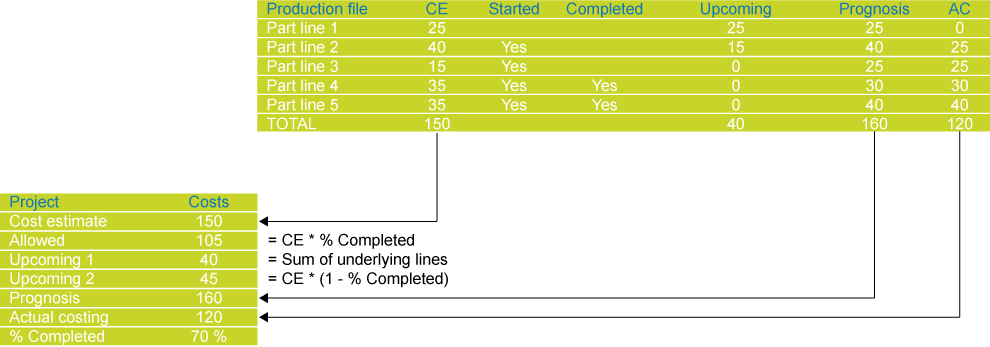
Below is a calculation example of the project costs when linking a production file to a project line.
Example
The type selected determines which project line sums are taken into account in calculations for the parent project lines: 'Estimate', 'Project lines', or 'Order information'. If 'Estimate' is selected, for example, only the values in the Estimate column will be used in the calculation. Project lines may have different calculation types within the project. If this is the case, the different values will be added up.
The 'Calculated based on underlying project lines' calculation type can be selected only on project lines of the 'Project', 'Subproject' or 'Phase' type.
The type selected determines how the value of the Expected costs field in the Order information column is calculated: